
How Done On Command Works
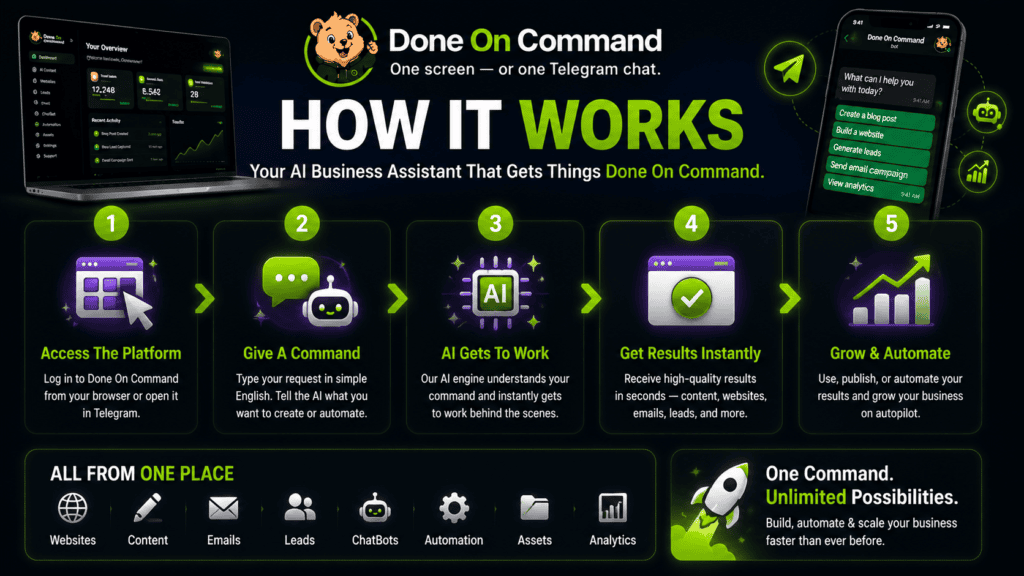
Done On Command works by creating a persistent memory for each business and using that memory to complete marketing tasks across pages, video, images, lead generation, email, social media, and website support.
The basic process is straightforward:
- Create a business profile.
- Connect the accounts needed for delivery.
- Describe the task in plain language.
- Review and revise the result.
- Approve the final action.
Instead of starting from zero every time, the platform keeps relevant business information available for future work. That is what allows a landing page, email campaign, video, and social post to follow the same brand direction.
| Stage | What happens |
|---|---|
| Create | A business profile and persistent memory are prepared |
| Connect | Email, social, and optional AI accounts are linked |
| Command | The user describes the required task |
| Review | The completed work is checked and revised |
| Deliver | The approved asset is published, sent, scheduled, or saved |
For a complete product analysis, pricing overview, and buying guidance, read our Done On Command review.
CommandAIHub.com is an independent affiliate information website and is not the official Done On Command website. We may receive a commission if you purchase through one of our links, at no additional cost to you.
Step 1: Create a Business Profile
The process begins by entering an existing business domain.
Done On Command examines the available website information and creates a business memory. This may include:
- Business logo
- Brand colors
- Fonts
- Writing voice
- Products
- Services
- Offers
- General company information
A separate dashboard is then created for that business.
This profile becomes the foundation for future tasks. When the user asks for a page, video, graphic, or campaign, the platform can work from the stored business information rather than requiring a complete explanation again.
Imagine a local fitness coach with a specific color palette, conversational writing style, and six-week coaching offer. Once that business has been added, those details can be applied when creating a lead magnet, landing page, promotional video, or email sequence.
The user may still need to review and refine the information. A website does not always contain every current price, policy, or campaign detail.
Persistent memory reduces repetition, but it does not remove the need to keep business information accurate.
Separate memory for each business
Each business receives its own memory, assets, and dashboard.
This is useful for freelancers and agencies because one client’s brand information does not need to be mixed with another’s.
For example, a freelancer could maintain separate workspaces for:
- A restaurant
- A real estate consultant
- An online store
- A fitness coach
- A local contractor
Each profile can retain its own visual identity, offers, tone, and past assets.
The number of business profiles available depends on the active plan. The front end supports up to two businesses, with optional upgrades providing higher allowances.
Step 2: Connect the Required Accounts
After creating a business profile, the user connects the external services needed for certain delivery actions.
Done On Command can create content inside its dashboard, but email campaigns and social posts need somewhere to be sent or published.
Email integrations
Supported autoresponder integrations include:
- GetResponse
- GoHighLevel
- Brevo
- Mailchimp
Connecting an autoresponder allows the platform to prepare, approve, schedule, and send campaigns through the business’s existing email account.
The contact list remains inside the connected autoresponder. Done On Command does not remove the provider’s own contact limits, sending rules, or subscription costs.
Social publishing
Social publishing works through Upload-Post and Buffer.
The available networks and publishing options depend partly on the connected service and account permissions.
Users may be able to prepare and schedule content for platforms such as Facebook, Instagram, TikTok, YouTube, X, LinkedIn, Threads, and Pinterest.
Optional personal AI key
Users may also connect a compatible personal AI key.
This is optional because monthly platform credits are already included. A personal key may reduce credit use for eligible AI actions, although the external AI provider may charge separately.
Connecting a personal key does not automatically remove business, page, image, video, or hosting limits.
Step 3: Give Done On Command a Task
Once the business and accounts are ready, the user can enter a task through the web dashboard or Telegram.
The command can be written in normal language.
Examples include:
- “Create a landing page for this offer.”
- “Make a 30-second promotional video.”
- “Build a quiz to capture leads.”
- “Prepare next week’s email campaign.”
- “Create five social posts.”
- “Update the call-to-action section on this page.”
The user does not need to move between several separate production tools for every stage of the task.
The platform selects the relevant department and uses the active business memory to create the requested asset.
How a page task may work
Suppose the user asks for a lead-capture page.
The Pages department can use the business profile, offer details, brand colors, and writing style to prepare the page.
The user can then request changes through chat, such as:
- Rewrite the headline
- Add a testimonial section
- Replace an image
- Change the button text
- Move the form higher
- Update the offer details
Once approved, the page can be hosted and published.
How a video task may work
A user could ask for a short promotional video related to an existing offer.
The platform can combine:
- A script
- Visual scenes
- Brand-related cutaways
- Voiceover
- Captions
- Business information
Existing talking-head footage can also be uploaded for editing. The Spokesperson Studio can create presenter-style content from an uploaded photograph.
How an email task may work
A user might request a short promotional sequence.
Done On Command can prepare the emails using the active business profile, then place them into the review process. After approval, they can be sent or scheduled through the connected autoresponder.
Here’s what most people do not consider: giving a clear command still matters.
“Create an email” leaves more room for interpretation than:
“Create a three-email follow-up sequence for people who downloaded the beginner guide. Keep the tone helpful, explain the next step, and do not use aggressive urgency.”
Persistent memory provides the brand context, while the command provides the task-specific direction.
Step 4: Review and Request Changes
Completed work does not automatically go live.
Pages, videos, emails, and social posts remain behind an approval gate until the user confirms the final action.
The review process generally follows four steps:
- Inspect the completed asset.
- Identify anything that needs improvement.
- Request revisions through chat.
- Approve the final version.
This is an important part of how Done On Command works.
AI can save production time, but it may still misunderstand an instruction, use outdated details, or create an unsuitable visual.
Before approval, users should check:
| Area | What to verify |
| Accuracy | Names, prices, dates, product details, and claims |
| Links | Buttons, forms, checkout URLs, and contact links |
| Branding | Colors, fonts, logo use, and writing tone |
| Visuals | Image quality, captions, text, and product representation |
| Compliance | Disclosures, permissions, and legal wording |
| Delivery settings | Recipient list, publishing time, and selected accounts |
The biggest mistake people make is treating the approval button as a formality.
It should be the final quality-control step. The platform may complete the production work, but the person operating the business remains responsible for what customers see.
Step 5: Approve and Deliver the Work
After the final version is approved, Done On Command completes the appropriate delivery action.
Depending on the task, the platform may:
- Host and publish a page
- Render a completed video
- Send an email campaign
- Schedule social content
- Activate a website chatbot
- Store the finished asset in the business library
Real-time status information is available for supported actions such as rendering, sending, and publishing.
This helps the user see whether a task is still processing, ready for review, or successfully delivered.
Pages
Approved pages can be hosted and published. A custom domain can also be connected.
The front-end plan includes one year of hosting and a monthly page-generation allowance.
Approved campaigns are delivered through the connected autoresponder.
The user should confirm the recipient list, timing, subject line, links, and offer details before approving the send.
Social media
Approved posts can be scheduled through supported social-publishing integrations.
Each post should be checked for the platform where it will appear. A message written for LinkedIn may not be suitable for TikTok or Instagram without adjustment.
Chatbot
The Front Desk chatbot can be embedded on a website and connected to a business knowledge base.
Its information should be reviewed regularly, especially when prices, policies, business hours, or offers change.
How Credits Work During the Process
The front-end plan includes 1,000 credits per month.
Credits are used for eligible platform actions. Failed or declined actions are not supposed to consume credits.
Higher plans provide larger monthly credit allowances:
| Plan level | Monthly credits |
| Front end | 1,000 |
| Agency Platinum | 5,000 |
| Mega Bundle | 10,000 |
Credits and content-generation allowances are separate considerations.
For example, connecting a personal AI key may reduce credit use for certain actions, but it does not automatically remove monthly page, image, or video limits.
A Practical Workflow Example
Consider a freelancer launching a lead-generation campaign for a local home-service company.
The workflow could look like this:
- Add the company’s website and create its business memory.
- Connect the company’s autoresponder and social accounts.
- Ask Done On Command to create a cost-estimate calculator.
- Create a landing page for the calculator.
- Prepare three follow-up emails.
- Produce a short promotional video.
- Create supporting social posts.
- Review every asset and request changes.
- Approve the page, campaign, video, and scheduled posts.
- Store the completed assets inside the company workspace.
The value comes from using one business context across the complete campaign.
The calculator, page, video, emails, and posts can all follow the same brand direction instead of being created as unrelated pieces.
What Done On Command Does Not Do Automatically
Done On Command can help create and deliver the work, but it does not make every business decision.
Users still need to determine:
- Which audience to target
- Which offer to promote
- What claims are appropriate
- Which traffic source to use
- How much to charge
- Whether an asset is accurate
- Whether the campaign is performing
It also does not guarantee leads, sales, customers, or income.
Think of it as an operating system for business production, not a replacement for strategy or judgment.
Final Summary
Done On Command works by combining persistent business memory with plain-language commands, connected accounts, human approval, and final delivery.
The workflow is:
- Create the business.
- Connect the necessary accounts.
- Enter the command.
- Review and revise the work.
- Approve and deliver the final asset.
This approach may reduce repetitive setup and make it easier to create connected campaigns across several channels.
The platform still requires clear instructions and careful review. External services may also be needed for email and social publishing.
For freelancers, affiliate marketers, agencies, and solo business owners who regularly move between several marketing tools, the connected workflow may be the most useful part of the platform.